

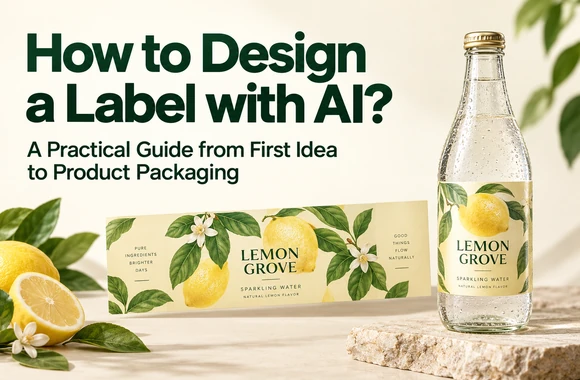
Good label design makes products easy to recognize. AI product label design helps small businesses explore new looks as their offerings change.
Changing tastes inspire new launches, as AP’s food texture reporting shows. NielsenIQ’s 2026 packaging analysis highlights how clear information and branding help shoppers choose.
But custom packaging for every launch adds costs and ties up cash in inventory. Updating labels on compatible stock containers offers more flexibility. Here’s how to use AI to create, refine, and check a label on your packaging.
Who Can Benefit from AI Label Design?
For early-stage direct-to-consumer (DTC) brands, private-label businesses, and small-batch sellers, minimum order quantities and upfront packaging costs can be a hurdle. Ordering separate packaging for every flavor or size before you know what will sell ties up cash. If your branding or product information changes, you may be left with packaging you can no longer use.
Stock bottles and jars paired with custom labels can help reduce that commitment, provided the containers suit your products. You can order labels in smaller batches, test demand, and update the design as you learn what customers want. AI can help business owners without a design background explore different looks more quickly.
| Business or situation | The challenge | How labels can help |
|---|---|---|
| Early-stage DTC brands | Demand is still unproven, making large custom packaging orders a risk | Use stock containers and small label runs to test products while limiting upfront spending |
| White-label and private-label sellers | The product and container are available but need a distinct brand identity | Add your brand name, colors, and product information without replacing the entire package |
| Small-batch sellers with multiple flavors or sizes | Separate packaging orders increase purchasing and inventory demands | Use compatible containers across products and distinguish each version with a different label |
| Makers selling at craft fairs and local markets | Production runs are small, and seasonal collections change frequently | Print labels by batch and update scents, flavors, or collection designs as needed |
Before You Design a Product Label, Plan the Content
Your label should help shoppers answer three questions: What is this product? Who makes it? Which flavor or size am I looking at? Ingredients, directions, nutrition information, and barcodes need their own space, depending on the product and where you sell it.
Start by separating the content into two groups. Put your brand, product name, and key distinguishing details on the front. Use the sides or back for supporting information. On a bottle of lemon sparkling water, for example, the front might highlight the brand and flavor, while the remaining space holds the ingredients, Nutrition Facts panel, and barcode.
If space is tight, remove repetitive wording before shrinking the type. You might also consider separate front and back labels or a wraparound layout. Establishing a clear reading order early makes the design easier to refine later.
Choosing Label Design Software for Your Project
The right label design software depends on what you need to do next. Are you looking for a complete visual concept, a template you can arrange yourself, or artwork to add to an existing layout?
| Design approach | Best suited to |
|---|---|
| Generate a product-specific label concept with a tool such as Packify | You have a product or reference image and want to develop the design, then see how it looks on packaging |
| Work with templates like Canva | You already have the copy and assets and want to control the layout yourself |
| Generate illustrations, patterns, or backgrounds | You have a layout in mind and need visual elements to complete it |
When choosing a label design maker, look beyond the first image it generates. Consider how you’ll edit the content, check the fit, and prepare files for your printer.
For businesses that want to develop the label alongside the packaging, Packify AI Label Generator offers a starting point. The following example uses LEMON GROVE, a fictional sparkling water brand, to walk through the process.
How to Design a Label with Packify?
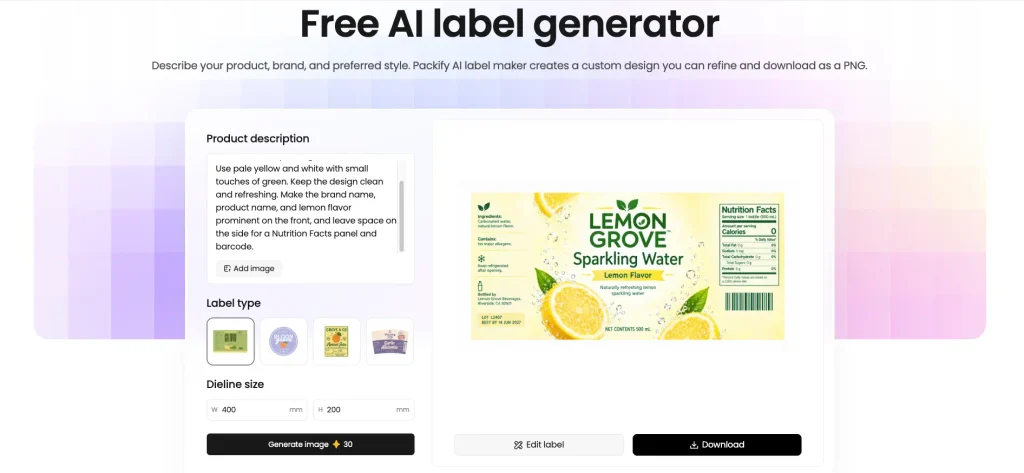
Step 1. Start Your Custom Label Design with a Prompt or Reference Image
Describe your product type, brand name, preferred colors, and the overall feel you want. If you already know the container and available labeling area, include those details too.
For example:
Design a wraparound label for LEMON GROVE lemon sparkling water in a bottle. Use pale yellow and white with small touches of green. Keep the design clean and refreshing. Make the brand name, product name, and lemon flavor prominent on the front, and leave space on the side for a Nutrition Facts panel and barcode.
Have a color palette or design style in mind? Upload a reference image to help communicate it. Packify will use those visual cues to guide a new design tailored to your product, rather than recreate the reference exactly.
Step 2. Refine the Look, Then Add Your Product Information
Check whether the colors, fonts, and graphics fit your product. Click Edit label to make specific changes, such as “Use fewer lemon illustrations, add more white space, and make the product name larger.”
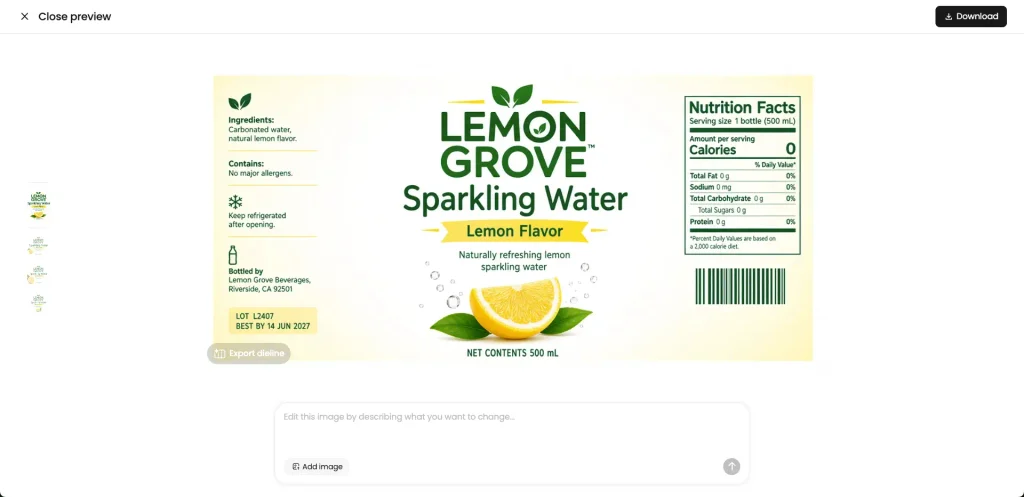
Once the look feels right, finalize your brand name, product copy, and size, then add your Nutrition Facts panel and barcode. Need to format your nutrition data? Use Nutrition Label Generator, verify the details, and test the barcode on a physical sample before printing.
Step 3. Preview and Refine Your Label on a Bottle Mockup
Want to see how the label looks on a bottle first? Enter “Generate a drink bottle with this label” to create a packaging preview.
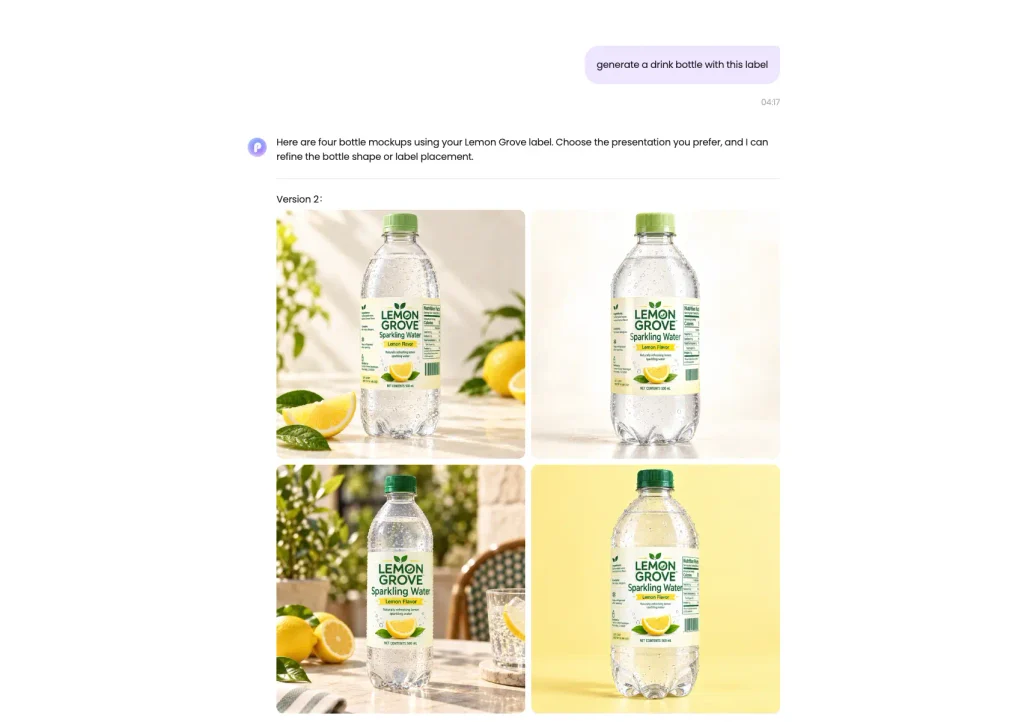
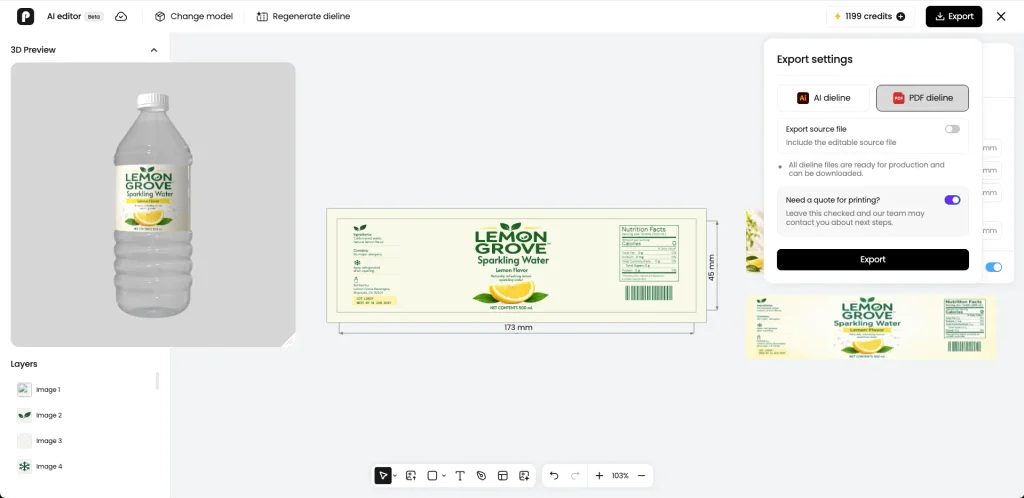
When you’re ready to refine the fit, click Export dieline and choose a suitable beverage bottle. Preview the label in 3D, then replace placeholder barcodes and nutrition panels with verified versions, adjust the logo and font sizes, and check that key information stays visible around the bottle.
Step 4. Check and Download Your Label Design
Before exporting, review your label at its actual size. Make sure the brand and product name stand out, small text is readable, and nothing important sits too close to an edge or seam.
| What to check | What to look for |
|---|---|
| Product copy | Correct names, flavor, size, and directions, with no typos or distorted text |
| Nutrition panel and barcode | Placeholders replaced with verified information and a barcode tested on a physical sample |
| Layout and fit | Clear text, balanced logo and font sizes, and suitable placement on the container |
| Print specifications | Dimensions, bleed, colors, and other settings that meet your printer’s requirements |
Once everything looks right, download your label as a PDF or Adobe Illustrator (AI) file.
Need help with printing? Packify also offers printing services. Select “Need a quote for printing?” and a team member will contact you with a quote.
AI can help turn a rough idea into a product label you can refine. Start with accurate product information, use a prompt or reference image to establish the style, and work through editing, packaging previews, and physical proofs.
Already have a product, a brand name, or an image that captures the look you want? Start with Packify AI Label Generator, create your first concept, and refine it around your actual packaging.