
Background remover for product photos
Upload a product photo to remove its background with Packify’s bg romover. Check fine edges before using the image in a listing.
Trusted by industry-leading businesses


Remove image background clutter from product photos
A busy backdrop can hide the outline of your product. Upload a photo and let Packify remove the background. Check that the whole product is visible before you place it on a white listing background or use it in another design.
How to remove a photo background with AI?
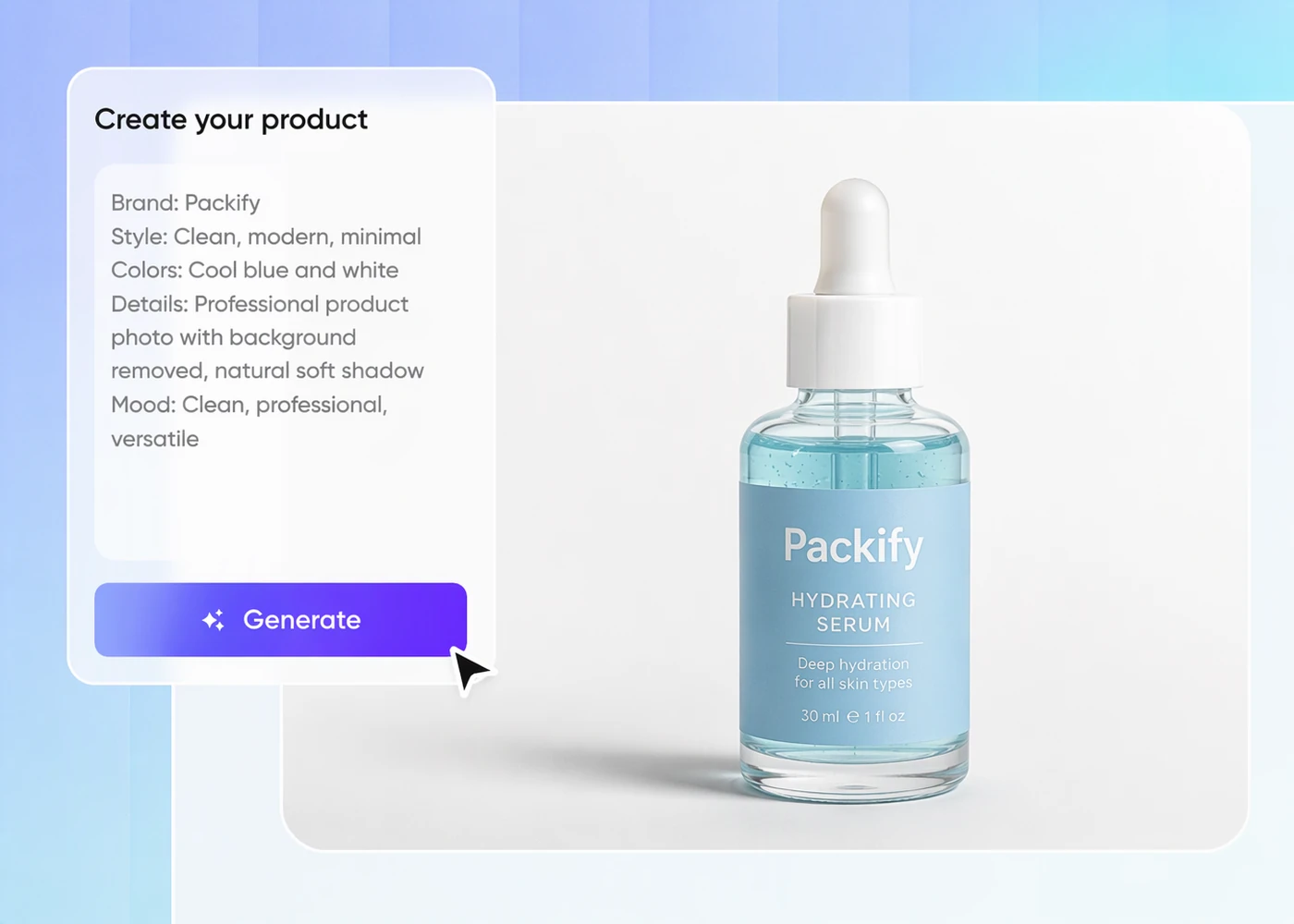
Step 1: Upload a product photo
Upload the original photo you want to use for your listing.
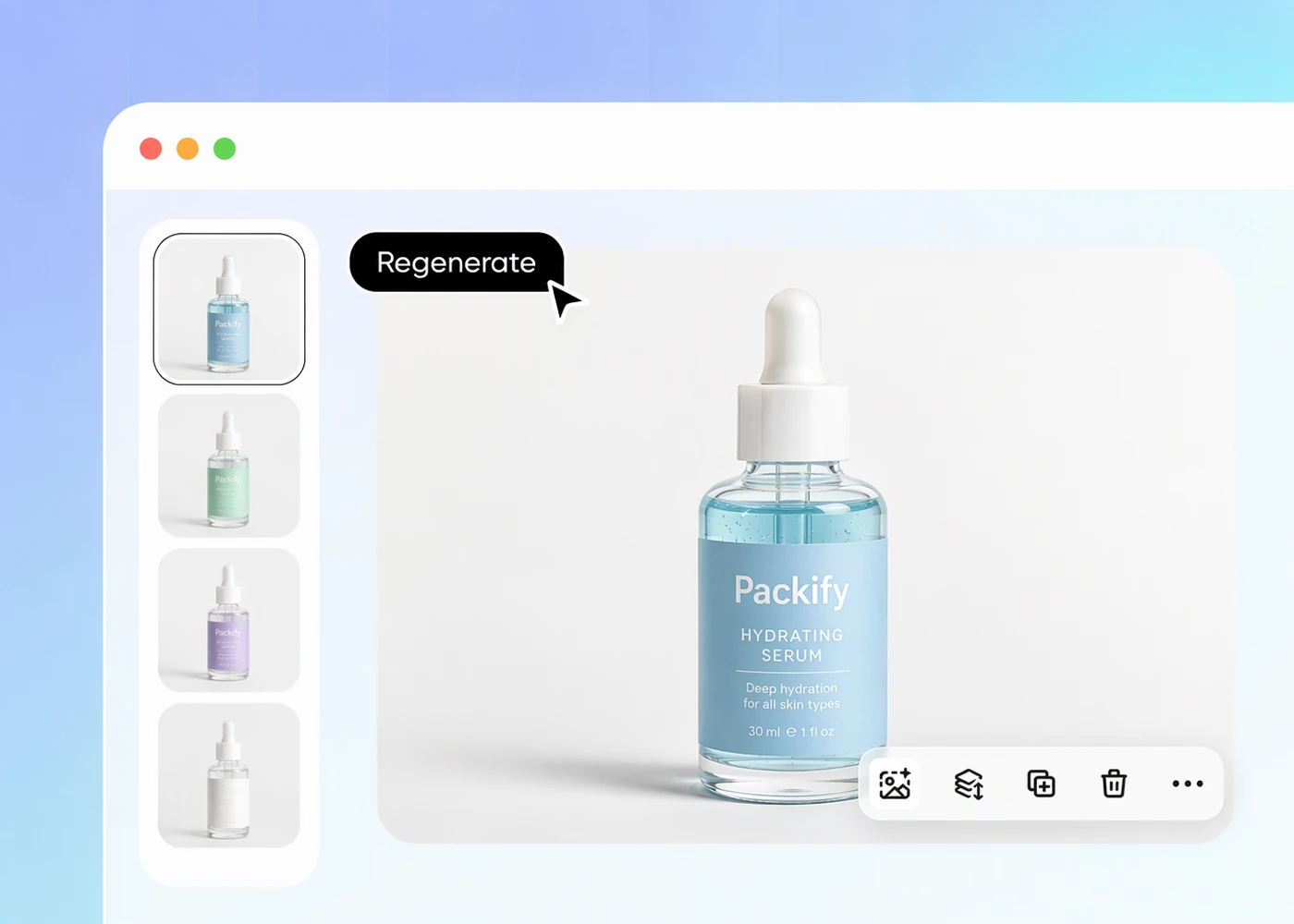
Step 2: Remove the background
Run the background remover, then inspect the product outline for fine details or parts of the backdrop that were left behind.
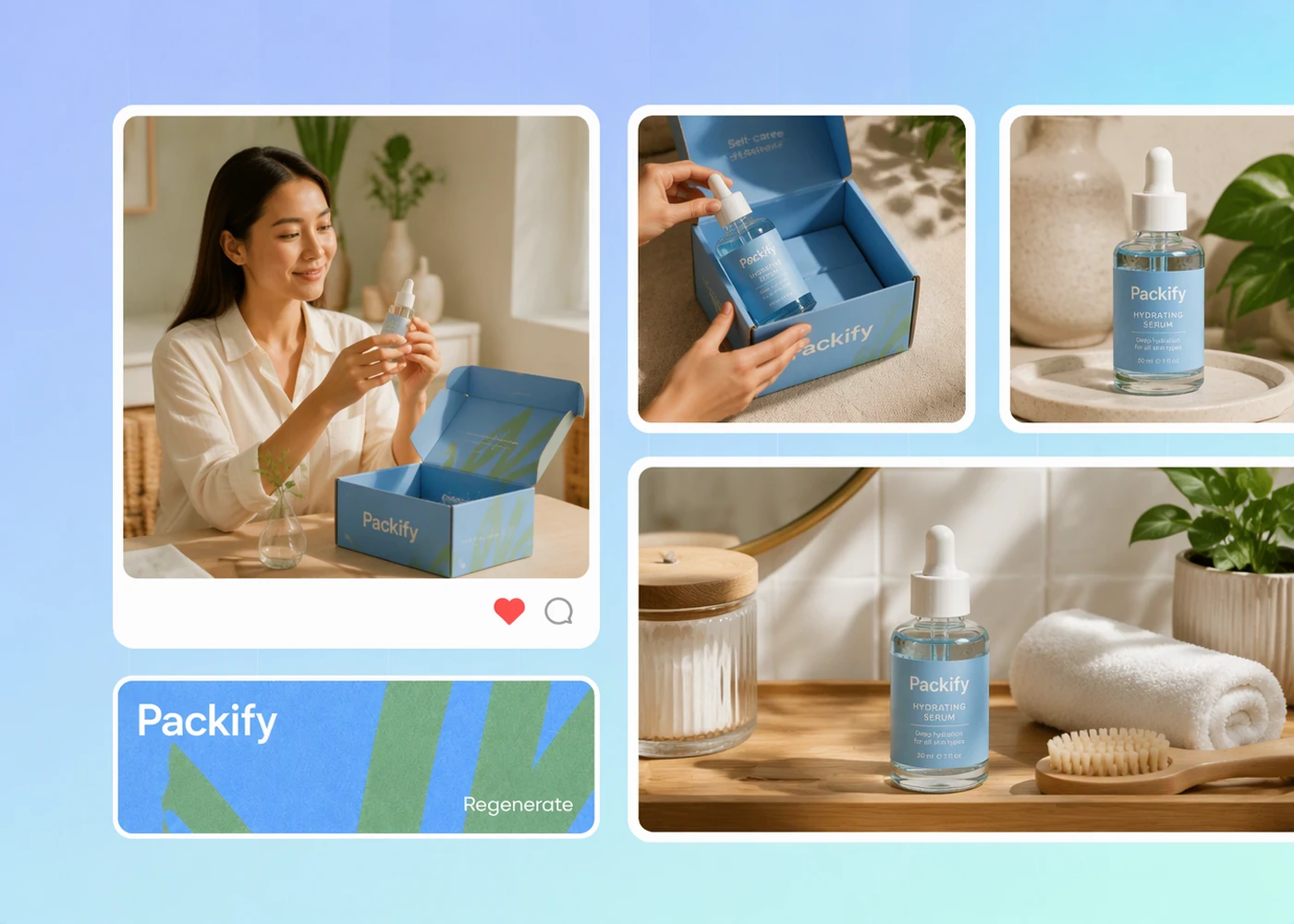
Step 3: Download the result
Download the processed photo after checking its edges, then use it in your listing or place it on a new background.

Step 1: Upload a product photo
Upload the original photo you want to use for your listing.
Step 2: Remove the background
Run the background remover, then inspect the product outline for fine details or parts of the backdrop that were left behind.
Step 3: Download the result
Download the processed photo after checking its edges, then use it in your listing or place it on a new background.
Why choose Packify AI for background removal?
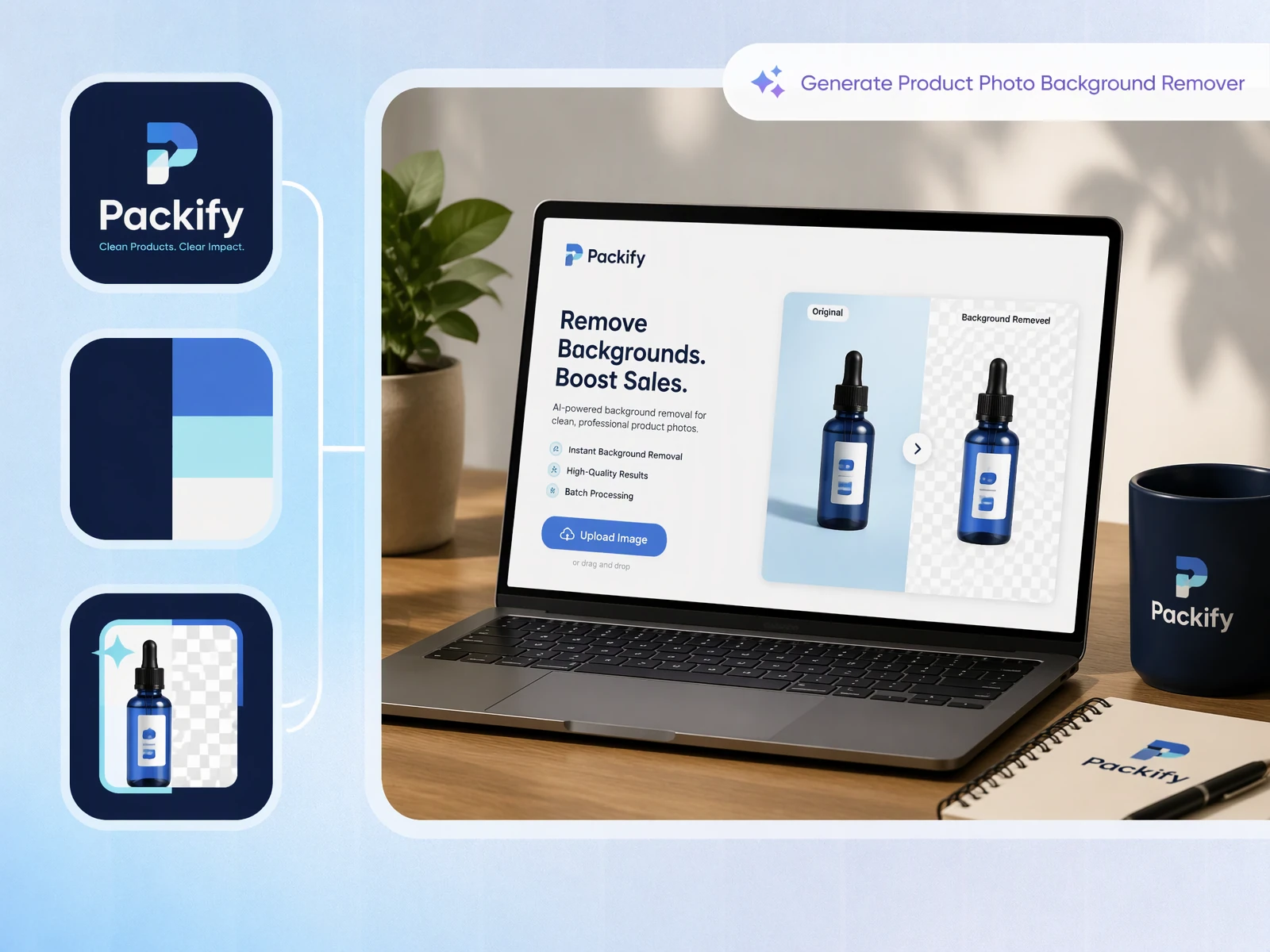
Remove background clutter automatically
Packify separates the product from its backdrop after you upload the photo. That gives you a cutout to review without tracing the entire outline by hand, saving a step each time you prepare another listing image.
Get clean AI cutout edges
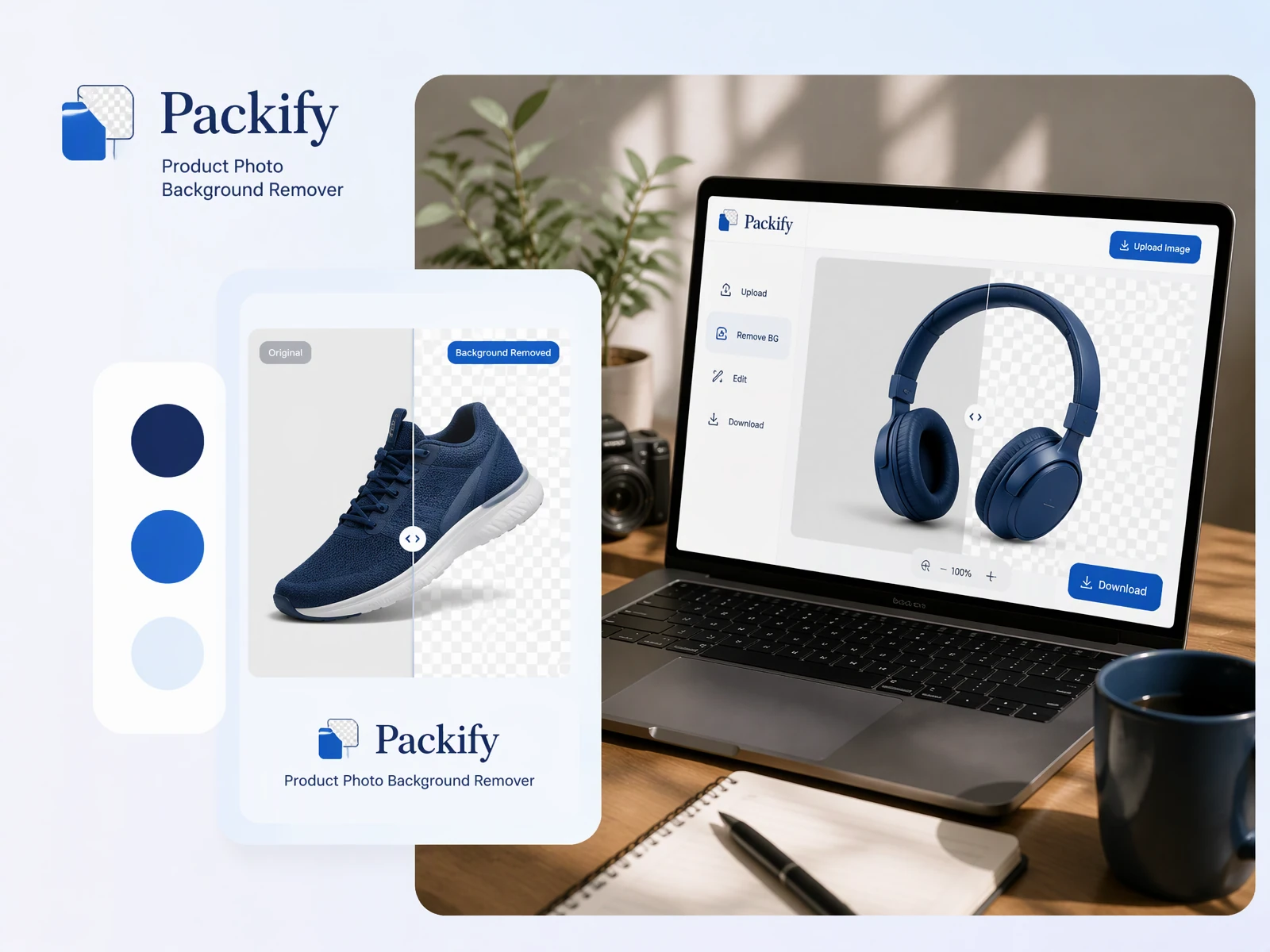
Packify’s AI background remover separates your product from the background and automatically fills small gaps along the cutout edge.
Keep catalog backgrounds visually consistent
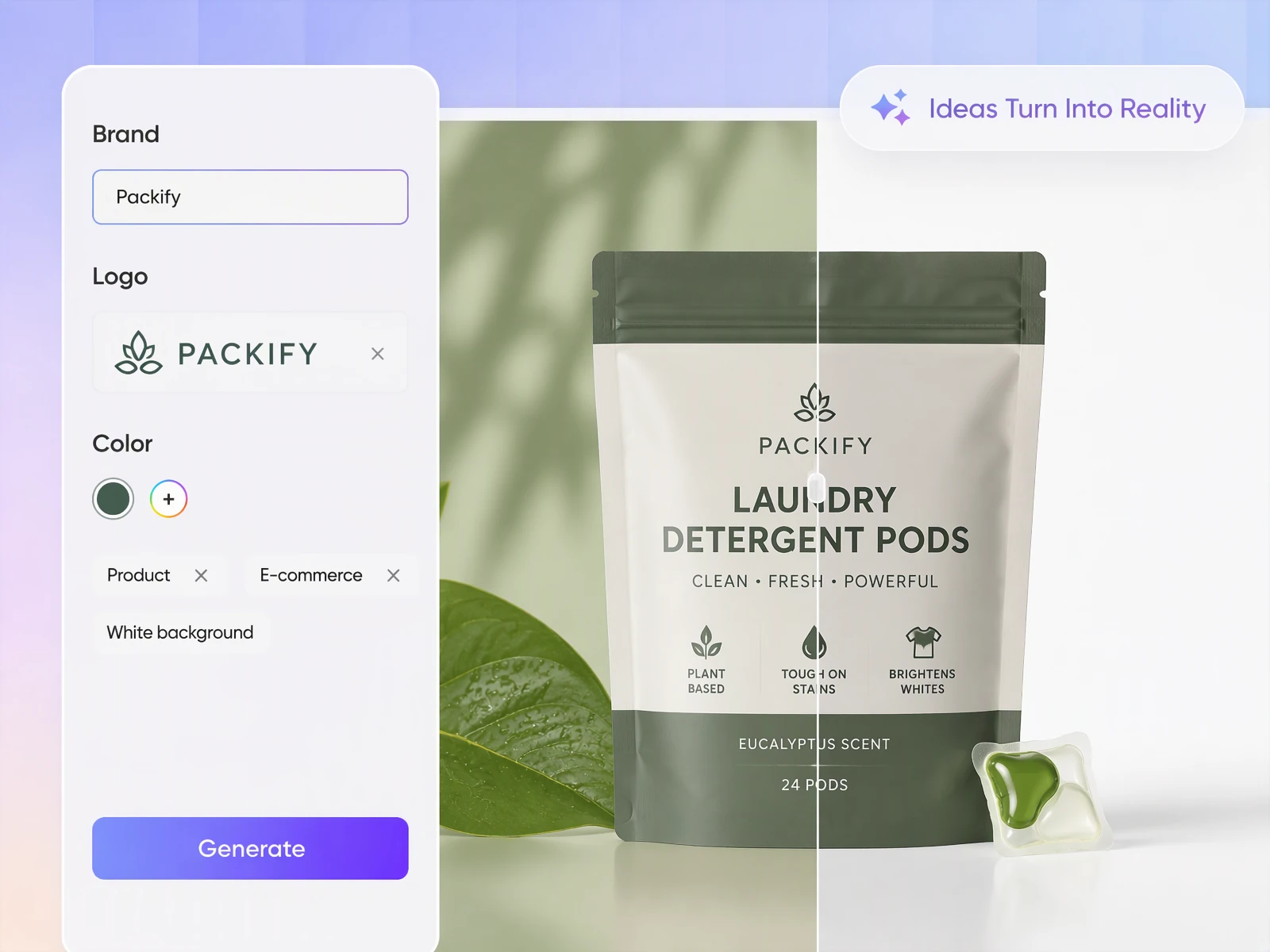
Start with the same background treatment for photos taken in different settings. After Packify removes the original backdrop, place each cutout on the same white background so older and newer listing photos have a consistent look.
Remove backgrounds with one prompt
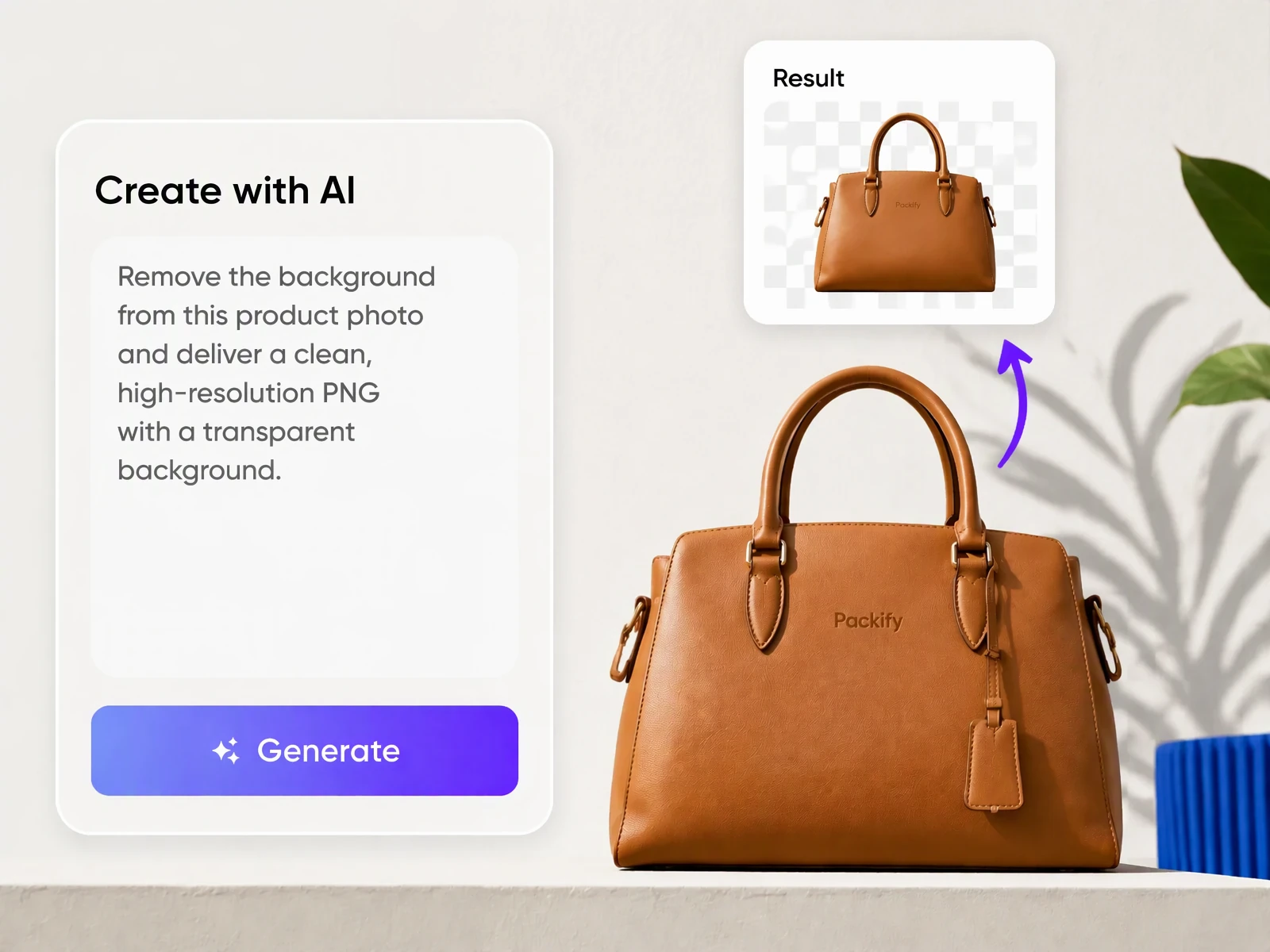
Upload a product photo and type Remove the background. That’s all you need to enter for Packify to remove the backdrop.
Remove background clutter automatically
Packify separates the product from its backdrop after you upload the photo. That gives you a cutout to review without tracing the entire outline by hand, saving a step each time you prepare another listing image.
Get clean AI cutout edges
Packify’s AI background remover separates your product from the background and automatically fills small gaps along the cutout edge.
Keep catalog backgrounds visually consistent
Start with the same background treatment for photos taken in different settings. After Packify removes the original backdrop, place each cutout on the same white background so older and newer listing photos have a consistent look.
Remove backgrounds with one prompt
Upload a product photo and type Remove the background. That’s all you need to enter for Packify to remove the backdrop.
Proven impact, in our customer's words


The AI-powered packaging design tool is a game-changer. It's fast, intuitive, making it an essential tool for any forward-thinking design team.ved.
March 26, 2025


The results are so amazing that I don't think it's just for inspiration... I'd say artificial intelligence outperforms most designers; the key is to come up with the perfect prompt. Great contribution! Thank you 😊.
March 18, 2025


The AI-powered packaging design tool is a game-changer. It's fast, intuitive, making it an essential tool for any forward-thinking design team.
March 18, 2025


We’re a tiny skincare shop. Packify.ai turned my scribbles into clean mockups and a printable dieline by Monday. Fewer back-and-forths, consistent branding, and our product page conversions moved.
March 18, 2025


The AI-powered packaging design tool is a game-changer. It's fast, intuitive, making it an essential tool for any forward-thinking design team.
March 26, 2025


The results are so amazing that I don't think it's just for inspiration... I'd say artificial intelligence outperforms most designers; the key is to come up with the perfect prompt. Great contribution! Thank you 😊
March 18, 2025


Congrats! Packify.ai, an AI packaging designer, enables easy, creative design and offers AI-driven product photography for e-commerce through simple chatting.
April 2, 2025


We’re a tiny skincare shop. Packify.ai turned my scribbles into clean mockups and a printable dieline by Monday. Fewer back-and-forths, consistent branding, and our product page conversions moved.
May 9, 2025
You asked,
we answered
You asked, we answered
What is the difference between a transparent background and a white background?
A transparent background leaves the area around the product empty so the design underneath can show through. A white background fills that area with white. Save your product image as a PNG with transparency, since JPG fills transparent areas with a solid color, often white.
Is background removal useful for secondhand listings?
Yes. Clearing the backdrop can make it easier for buyers to focus on the item.
Can I use the background remover for free?
Registering for Packify gives your account free credits to try the background remover. Each generation uses credits, so check your balance before processing an image. Visit the Pricing Page if you need more credits or advanced features.
Can I use the processed images commercially?
Yes. You can use your processed images commercially, subject to Packify’s Terms of Use. Before publishing an edited image in a listing or ad, make sure you have permission to use the original photo and any protected material it contains.
Give your product photo a cleaner background
