
AI necklace product photography
Upload an existing necklace photo and describe how you want to show it. And then create a scene or an on-model preview.
Trusted by industry-leading businesses


Necklace product photography with cleaner backgrounds
Reflections can make fine chain links hard to see in a flat lay. Use Packify to replace a distracting background in your existing necklace photo. Before adding it to your listing, zoom in to check the gaps between links and compare the pendant edges and metal tone with your original.
How to create necklace listing photos with AI?
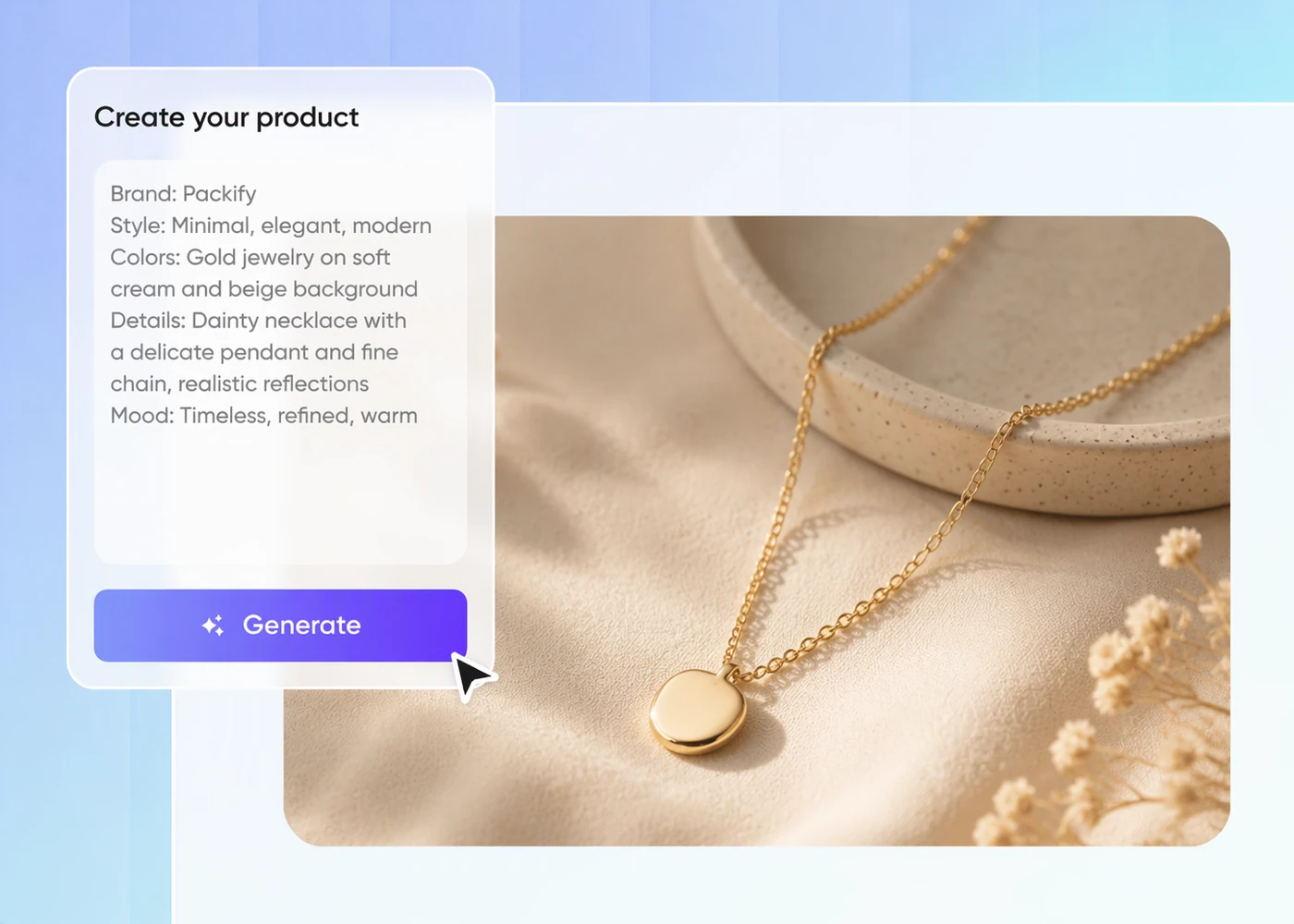
Step 1: Choose a clear product photo
Upload an existing photo with the whole necklace visible, including the chain and pendant.
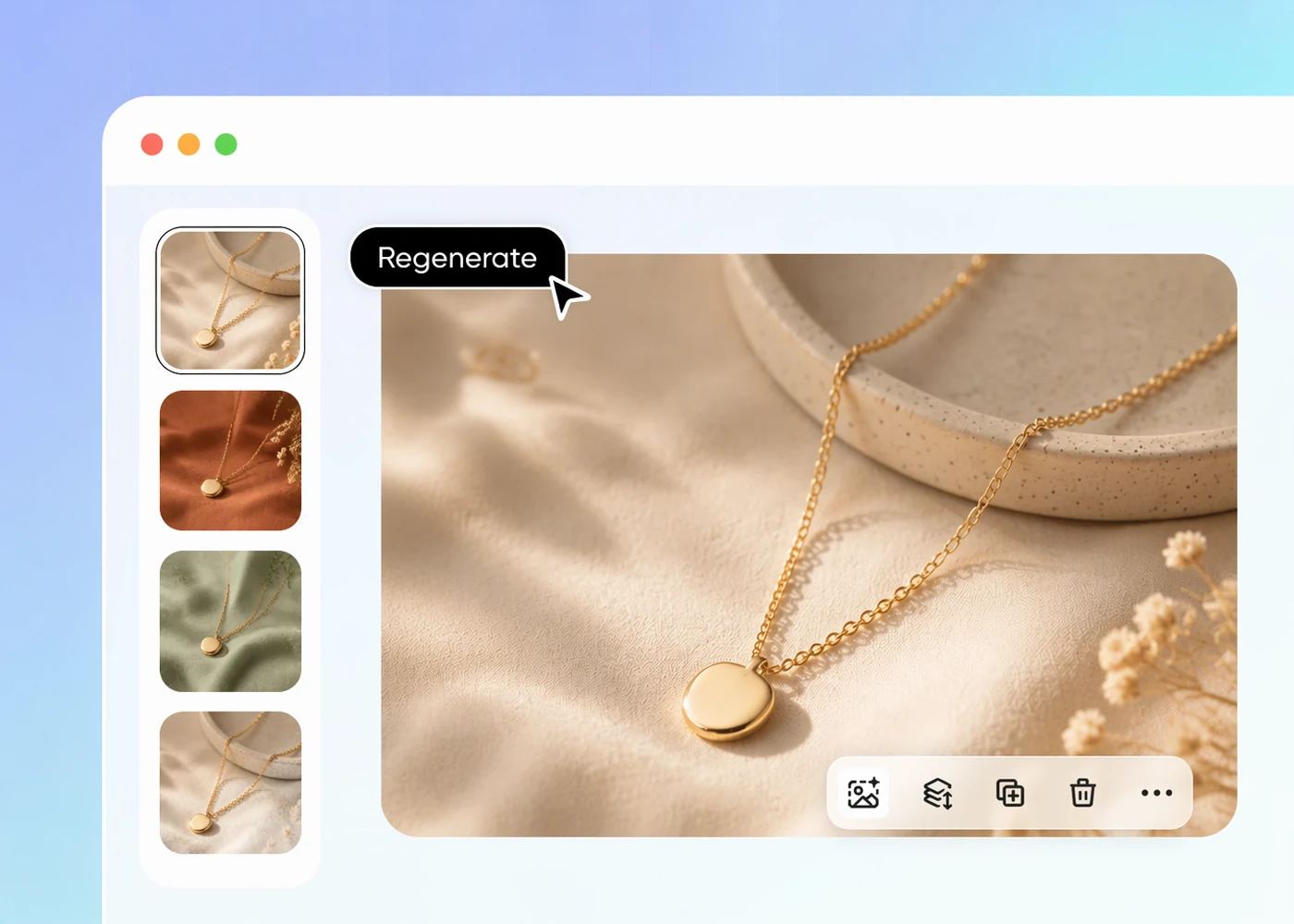
Step 2: Describe the shot you need
Describe an on-model view or a product scene, then generate a draft and revise your description if the framing misses what you need.
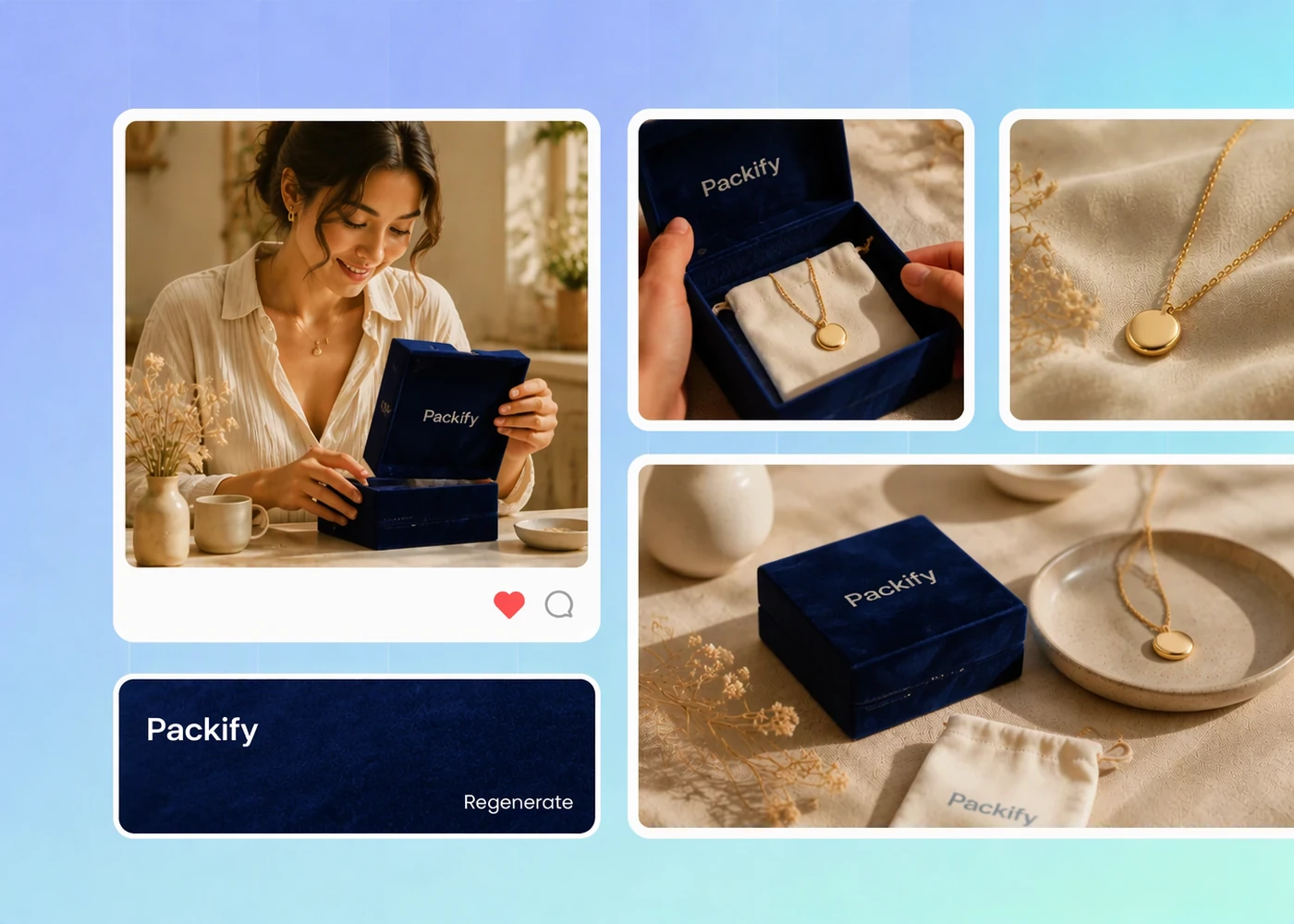
Step 3: Check and download your necklace photo
Compare chain links, pendant shape, and metal tone with your original photo at full size. Then download the image for your shop or social media.

Step 1: Choose a clear product photo
Upload an existing photo with the whole necklace visible, including the chain and pendant.
Step 2: Describe the shot you need
Describe an on-model view or a product scene, then generate a draft and revise your description if the framing misses what you need.
Step 3: Check and download your necklace photo
Compare chain links, pendant shape, and metal tone with your original photo at full size. Then download the image for your shop or social media.
Why choose Packify AI for your necklace photos?
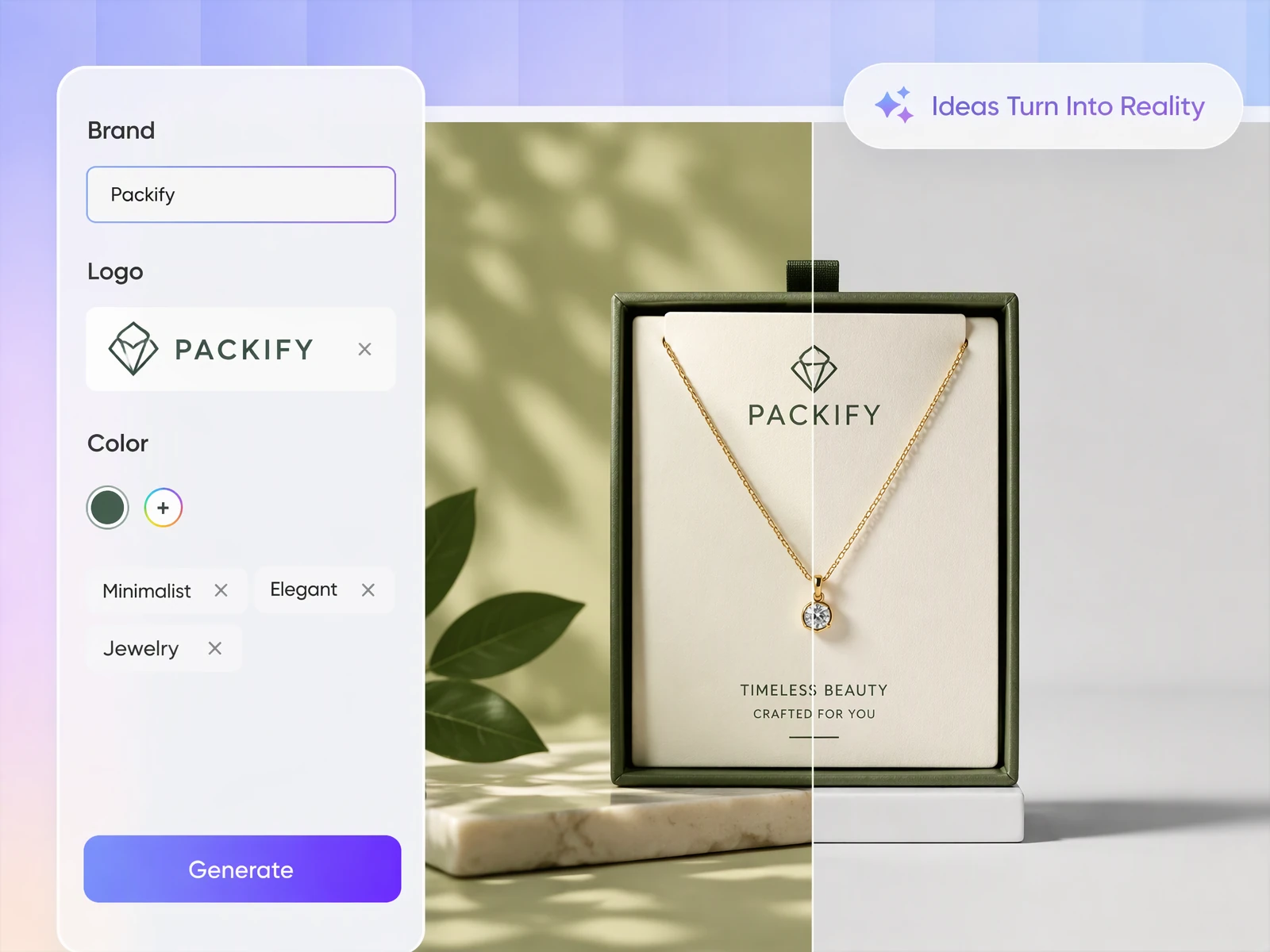
Shoot necklaces with fewer setups
Start with the necklace photo you already use on your listing. Packify can change its background so you can add a styled secondary image without rearranging the chain, setting up the lights again, or taking another set of product shots.
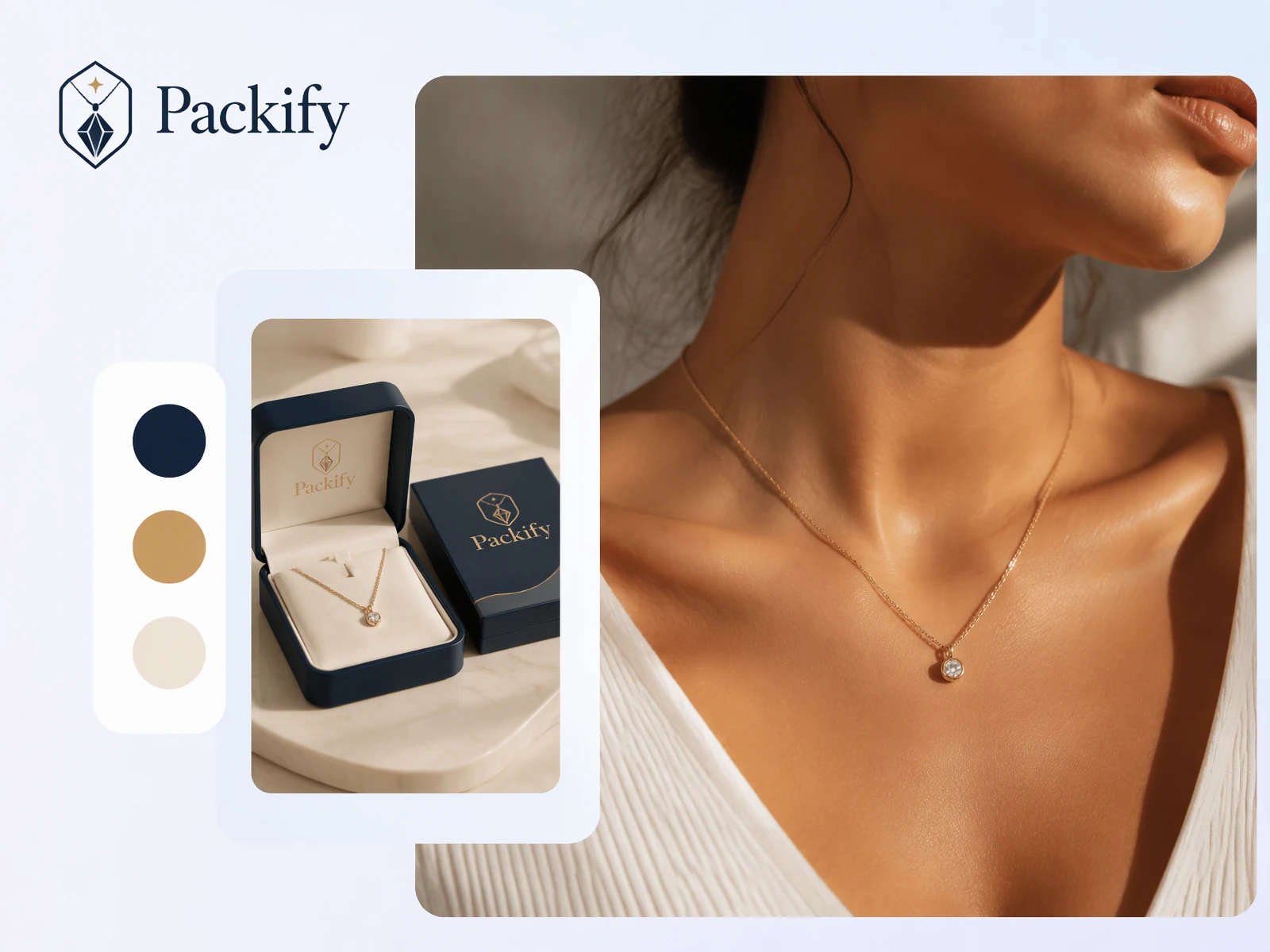
Test two necklace photo styles
Quickly test two shots for your necklace product photography. Generate a close-up to show the chain links and pendant details, then generate a separate image of a model wearing the necklace. Compare them side by side to see which details each shot shows, including where the pendant sits when worn.
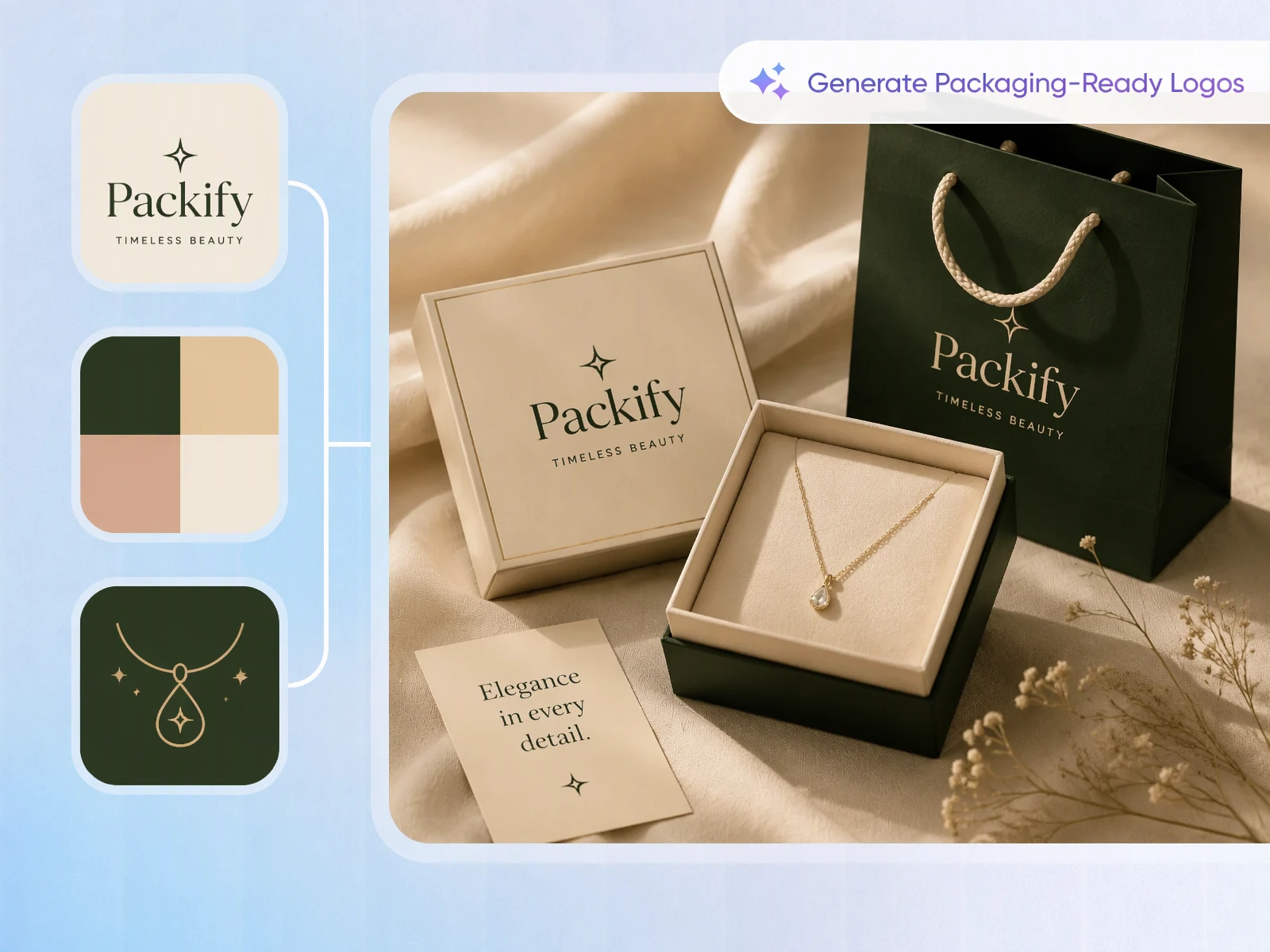
Coordinate backgrounds across your catalog
Use Packify to replace the background in each necklace photo with a look that matches your brand. Reuse the same background description for chain and pendant listings so new product photos fit visually alongside the rest of your catalog.
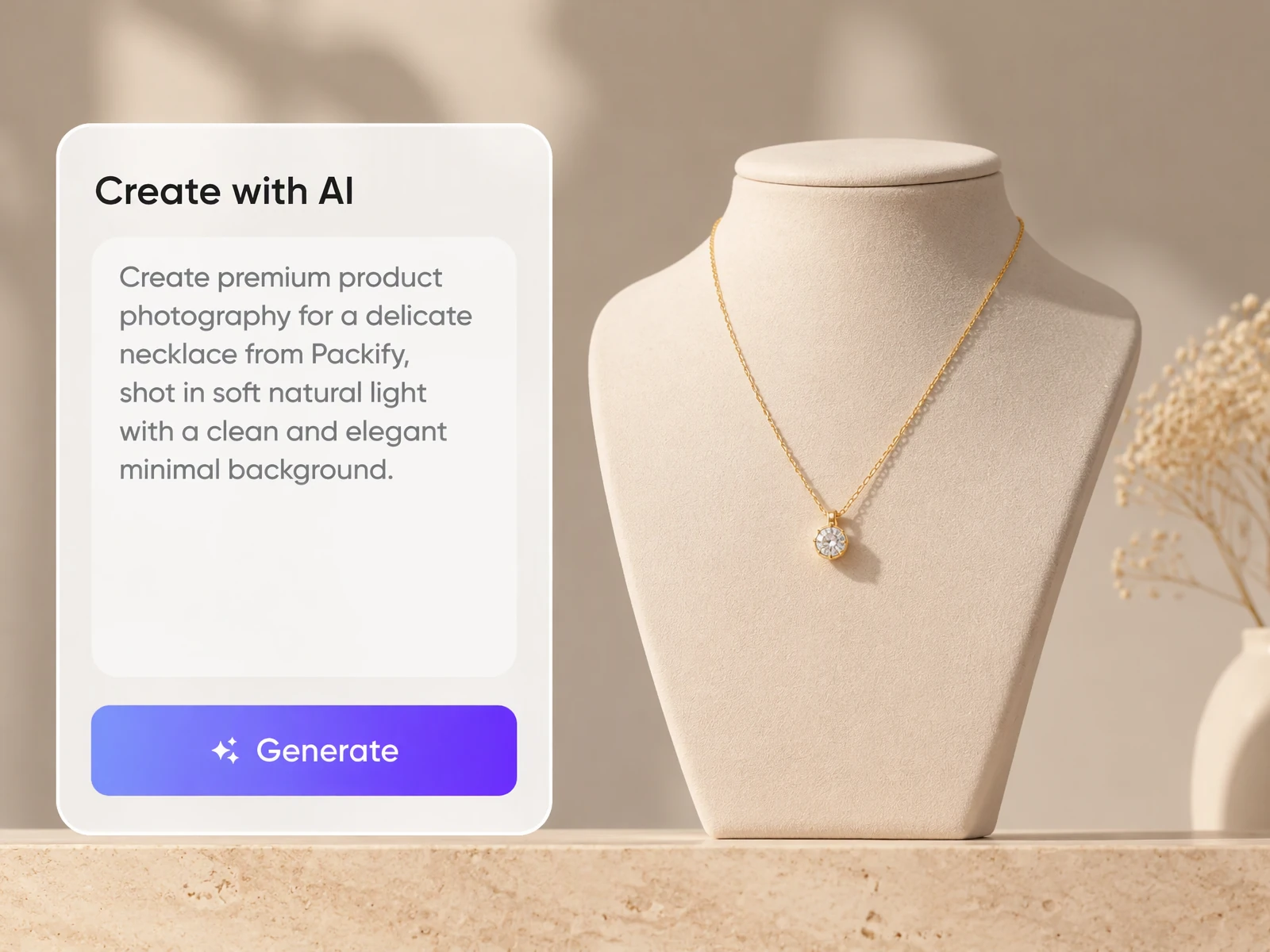
Describe scenes in plain language
Tell Packify what should surround the necklace and where you want the viewer’s attention. If the first draft looks too busy, ask for a plain surface and more open space around the chain, then generate a new version.
Shoot necklaces with fewer setups
Start with the necklace photo you already use on your listing. Packify can change its background so you can add a styled secondary image without rearranging the chain, setting up the lights again, or taking another set of product shots.
Test two necklace photo styles
Quickly test two shots for your necklace product photography. Generate a close-up to show the chain links and pendant details, then generate a separate image of a model wearing the necklace. Compare them side by side to see which details each shot shows, including where the pendant sits when worn.
Coordinate backgrounds across your catalog
Use Packify to replace the background in each necklace photo with a look that matches your brand. Reuse the same background description for chain and pendant listings so new product photos fit visually alongside the rest of your catalog.
Describe scenes in plain language
Tell Packify what should surround the necklace and where you want the viewer’s attention. If the first draft looks too busy, ask for a plain surface and more open space around the chain, then generate a new version.
Proven impact, in our customer's words


The AI-powered packaging design tool is a game-changer. It's fast, intuitive, making it an essential tool for any forward-thinking design team.ved.
March 26, 2025


The results are so amazing that I don't think it's just for inspiration... I'd say artificial intelligence outperforms most designers; the key is to come up with the perfect prompt. Great contribution! Thank you 😊.
March 18, 2025


The AI-powered packaging design tool is a game-changer. It's fast, intuitive, making it an essential tool for any forward-thinking design team.
March 18, 2025


We’re a tiny skincare shop. Packify.ai turned my scribbles into clean mockups and a printable dieline by Monday. Fewer back-and-forths, consistent branding, and our product page conversions moved.
March 18, 2025


The AI-powered packaging design tool is a game-changer. It's fast, intuitive, making it an essential tool for any forward-thinking design team.
March 26, 2025


The results are so amazing that I don't think it's just for inspiration... I'd say artificial intelligence outperforms most designers; the key is to come up with the perfect prompt. Great contribution! Thank you 😊
March 18, 2025


Congrats! Packify.ai, an AI packaging designer, enables easy, creative design and offers AI-driven product photography for e-commerce through simple chatting.
April 2, 2025


We’re a tiny skincare shop. Packify.ai turned my scribbles into clean mockups and a printable dieline by Monday. Fewer back-and-forths, consistent branding, and our product page conversions moved.
May 9, 2025
You asked,
we answered
You asked, we answered
How many photos does a necklace listing need?
Start with five photos per necklace: a full front view on a plain background, an angled view, a close-up of the chain links and pendant, a clasp close-up, and a photo on a model to show where the necklace sits. Add a styled scene as an optional sixth image.
Which listing photos should I keep as real necklace photos?
Keep an original product photo as the main image and use real close-ups for details buyers may want to inspect, such as the clasp or engraving. Generated scenes and on-model images can supplement those photos with styling context.
When should I hire a photographer for my necklace listing?
For necklace product photography, hire a photographer first. Start with sharp photos that clearly show the chain links and pendant. Then use Packify’s AI to change backgrounds, saving time and avoiding the cost of a separate shoot for each backdrop.
What background is best for necklace product photography?
Use a plain, matte background that contrasts with the necklace. For a fine chain, skip textured backdrops.
Can I try AI necklace product photography for free?
Registering for Packify gives your account free credits that you can use to try AI necklace product photography. Each generation consumes credits, so check your balance before generating an image. Visit the Pricing Page if you need additional credits or advanced features.
Can I use my AI-generated necklace photos commercially?
Yes. You can use your generated necklace photos commercially, subject to Packify’s Terms of Use. Use source photos you have permission to use, and review the generated images for third-party marks and any details that could misrepresent your product before publishing.
Create new listing photos from one necklace shot
